◆ ePošťák Desktop
Invoices from your accounting program leave as e-invoices
Your program exports invoices to a folder. The app sends them to ePošťák, which checks them, and you approve them in the inbox. You keep your program and the way you work.
For Windows 10 and 11The app is freeYour original file is never deleted
From export to a delivered e-invoice
- 01
Folder
Your accounting program saves an exported invoice to the folder the app watches. A new file is sent on its own.
- 02
Check in ePošťák
ePošťák checks the file like an import in the inbox: parties, lines, VAT and totals. If something is wrong you see the exact reason in plain words.
- 03
Approval in the inbox
The invoice waits under “Na kontrolu” (for review). You look at it and approve it with one click. Nothing is sent without your approval.
- 04
Delivered e-invoice
After approval ePošťák delivers the invoice to your customer. The delivery status is shown on the invoice in the inbox.
What the app can read
The list follows what ePošťák really reads on import. Export the file to the watched folder.
 POHODA (STORMWARE)XML
 Money S3XML
 MRP-K/S (MRP)XML
 ABRA FlexiXML
- DUEL (Ježek software)XML
- ISDOC (KROS, PROLUC, MKsoft and other programs)ISDOC / XML
- Peppol BIS 3 (UBL)XML
A PDF with an embedded ISDOC invoice goes out just like XML. Other PDFs and images wait under “Na kontrolu”: one click turns them into a draft invoice in ePošťák, you check the data and send it. Upload a CSV file on the “Nahrať doklad” (Upload document) page.
KROS Omega: export ISDOC. The app does not read the text export (TXT).
Three steps, about five minutes
- 01
Install the app from Microsoft Store
Click “Get it from Microsoft Store” and install ePošťák Desktop. New versions arrive through Microsoft Store on their own.
- 02
Click „Pripojiť počítač“ (connect a computer) in the inbox
Sign in to ePošťák, open ePošťák Desktop and click „Pripojiť počítač“. A one-time code appears, valid for 15 minutes.
- 03
Paste the code into the app
The app asks for the code on first start. Then you pick a folder and set up its export in your accounting program.
ePošťák Desktop installs from Microsoft Store, for Windows 10 and 11. The app is free and updates itself.
Step by step
This is the app on day one: connect your company, pick the folders, then watch your invoices go out.
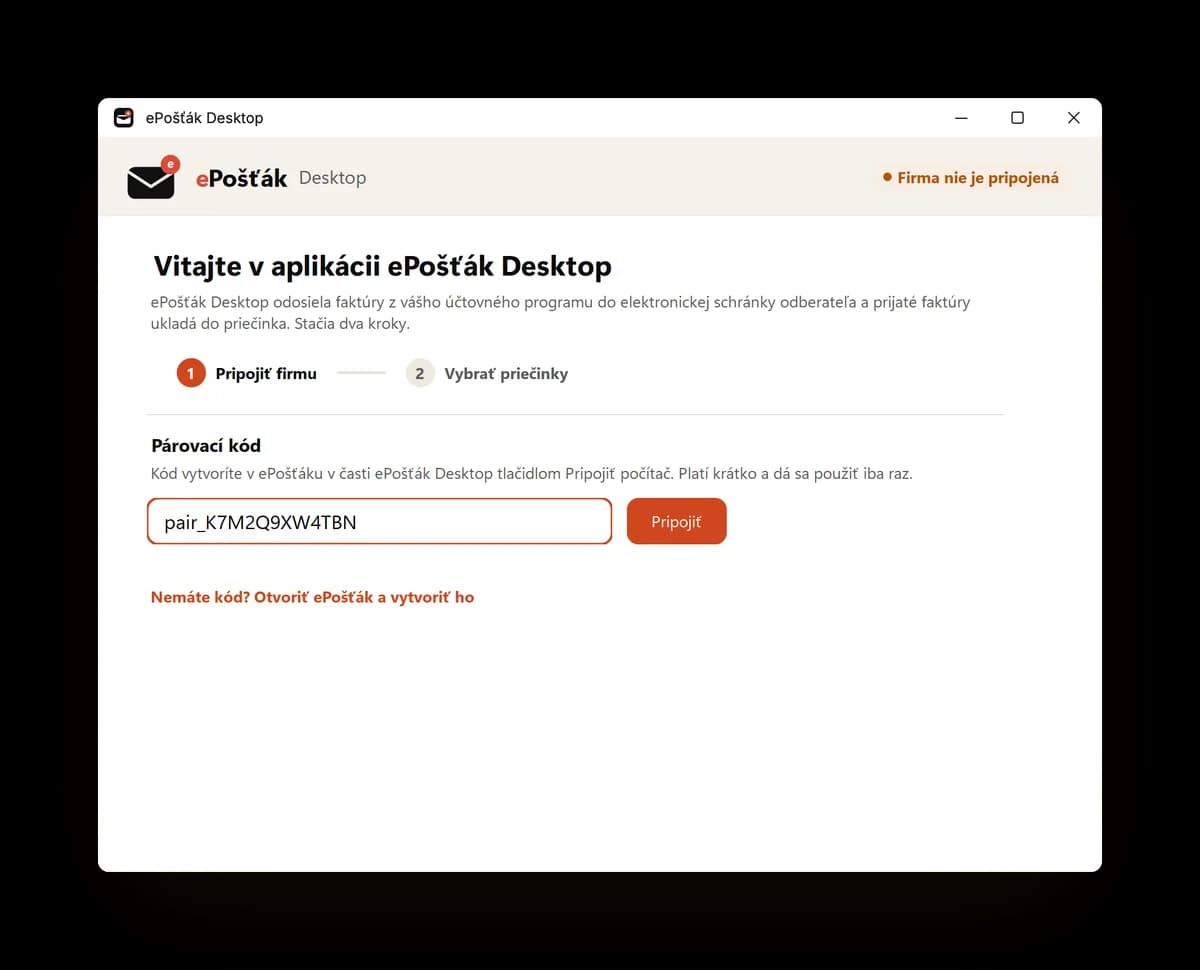
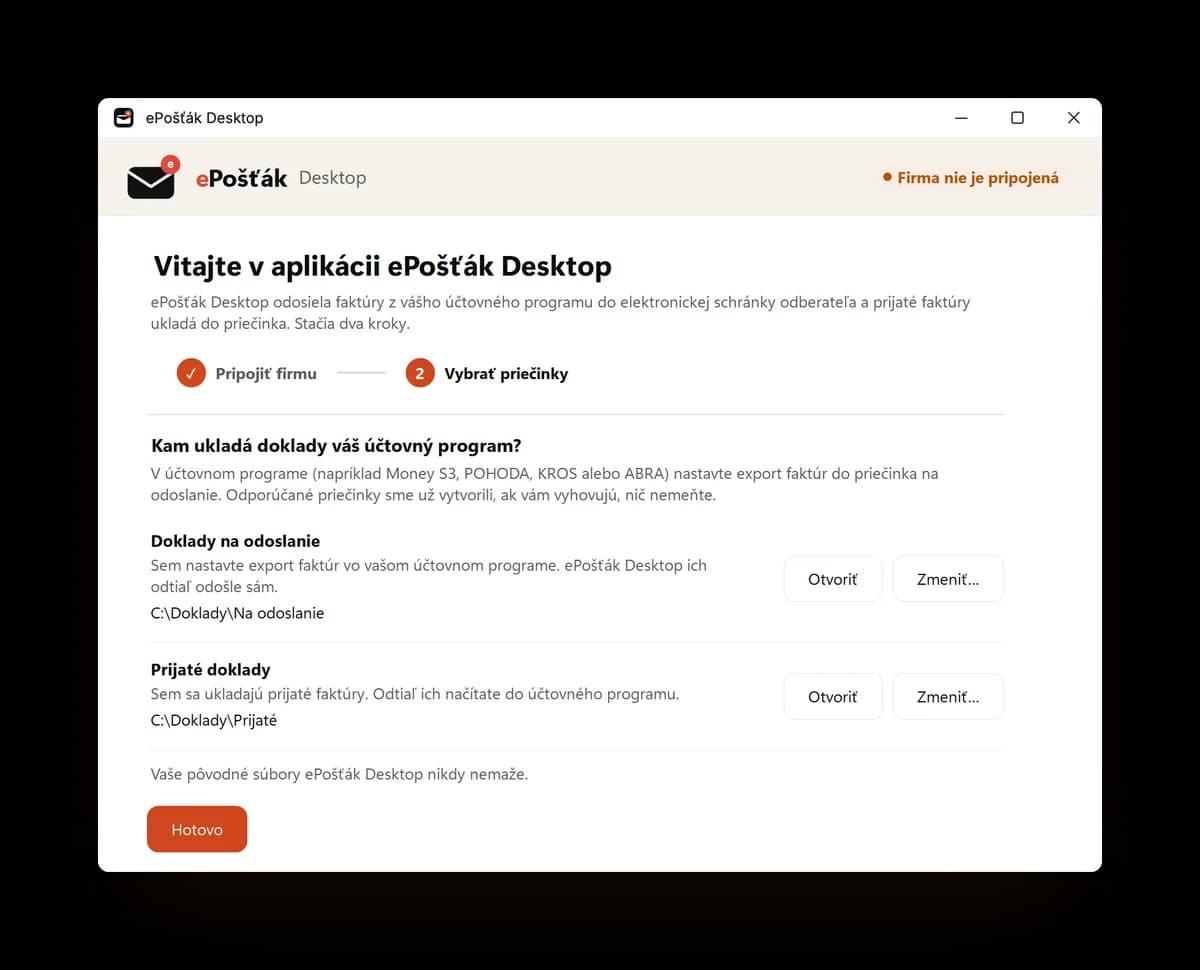
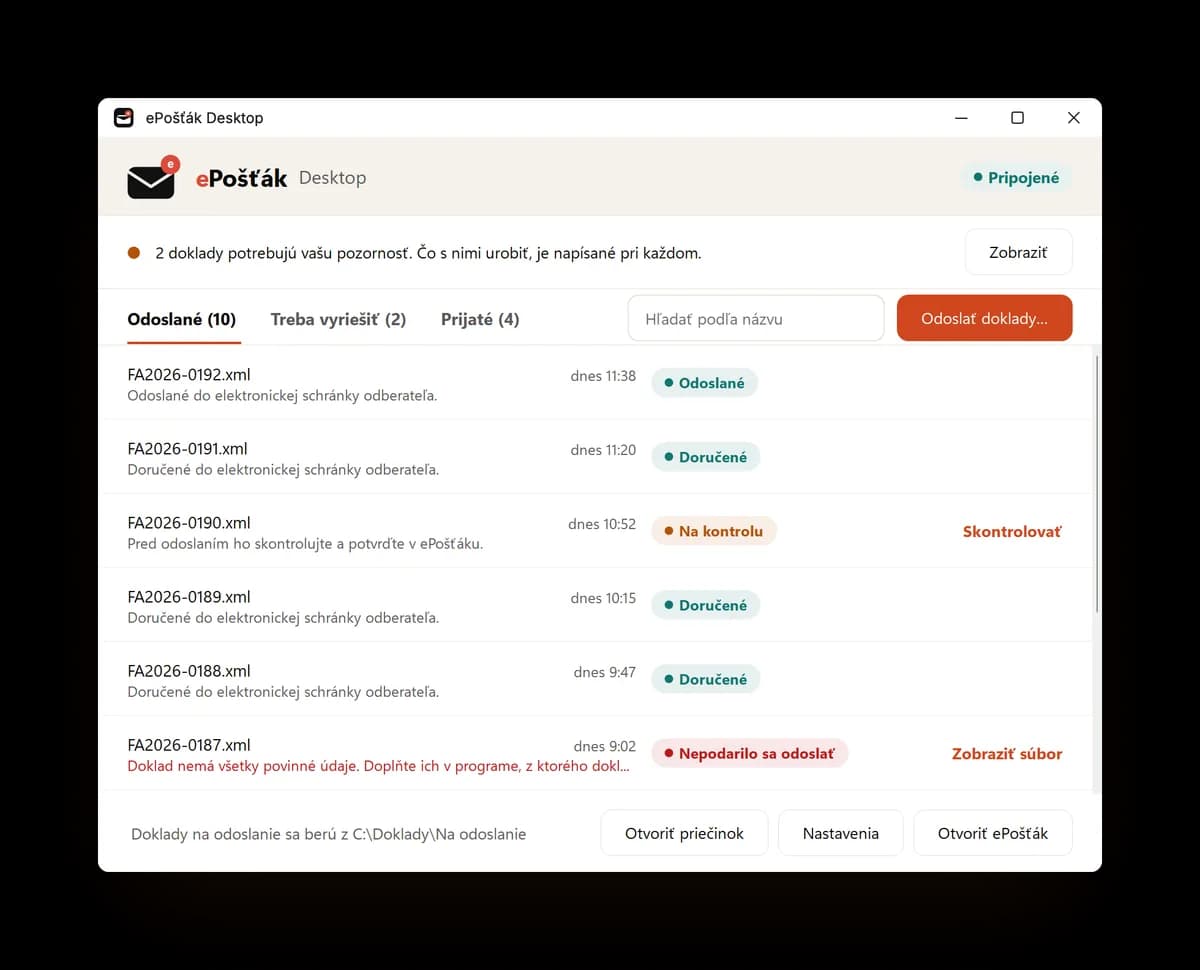
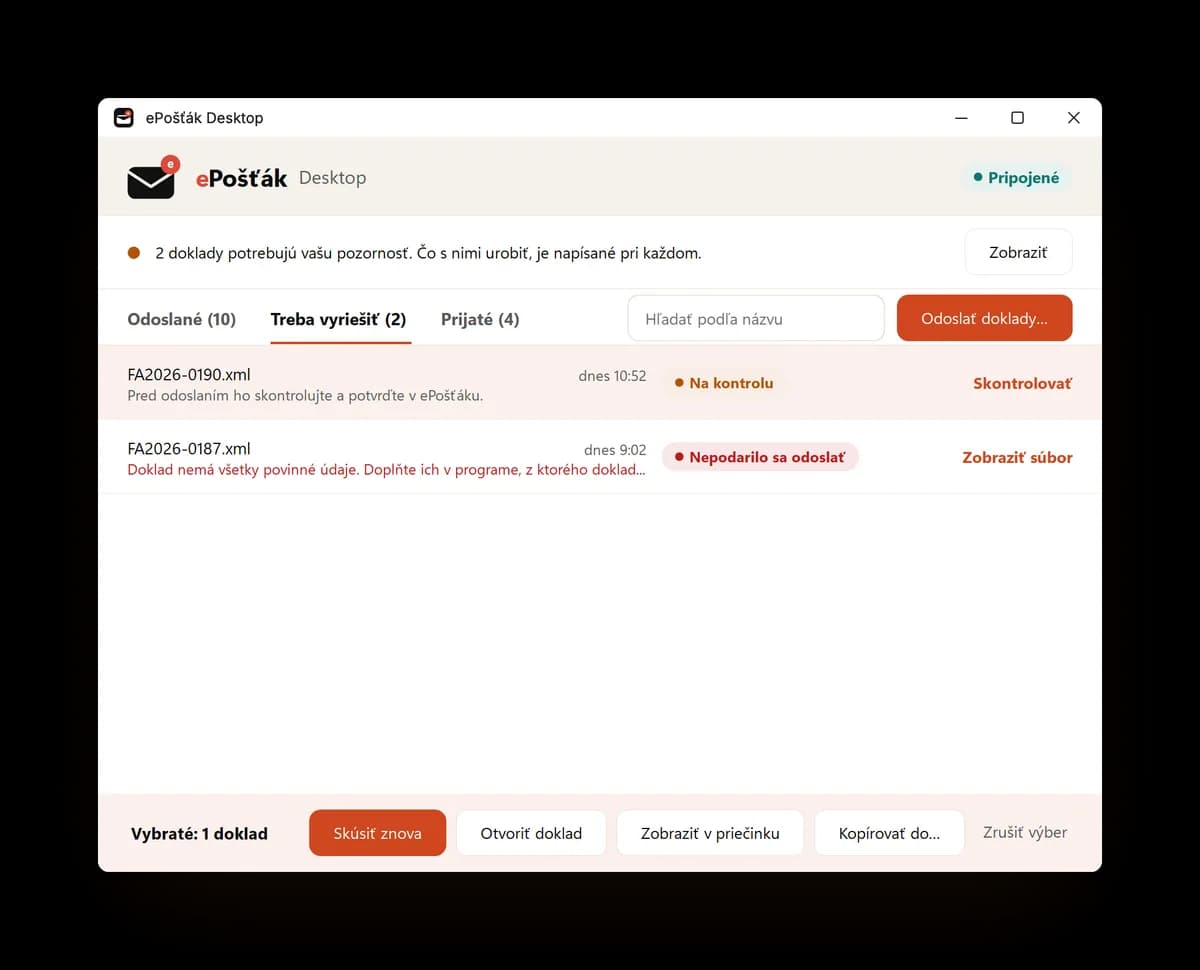
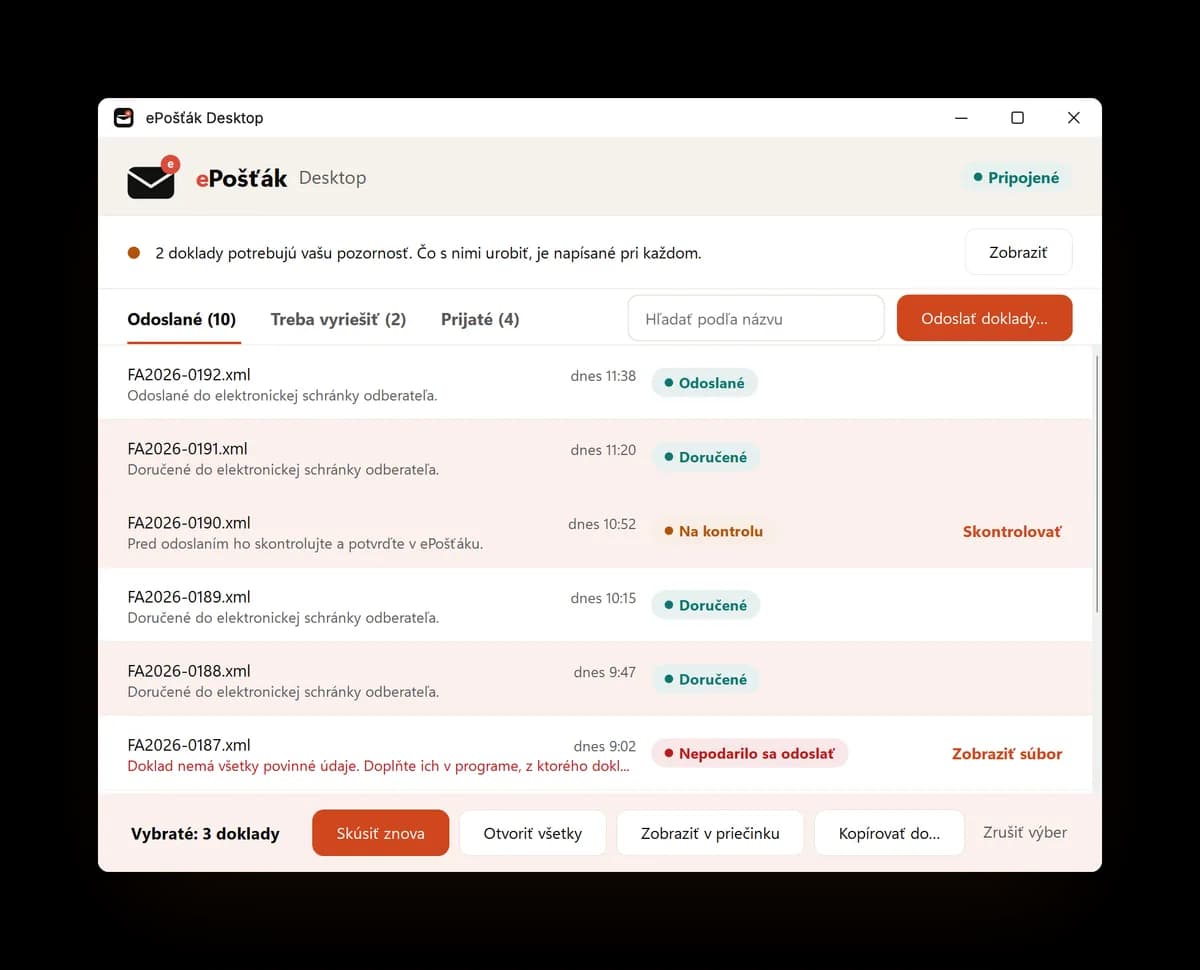
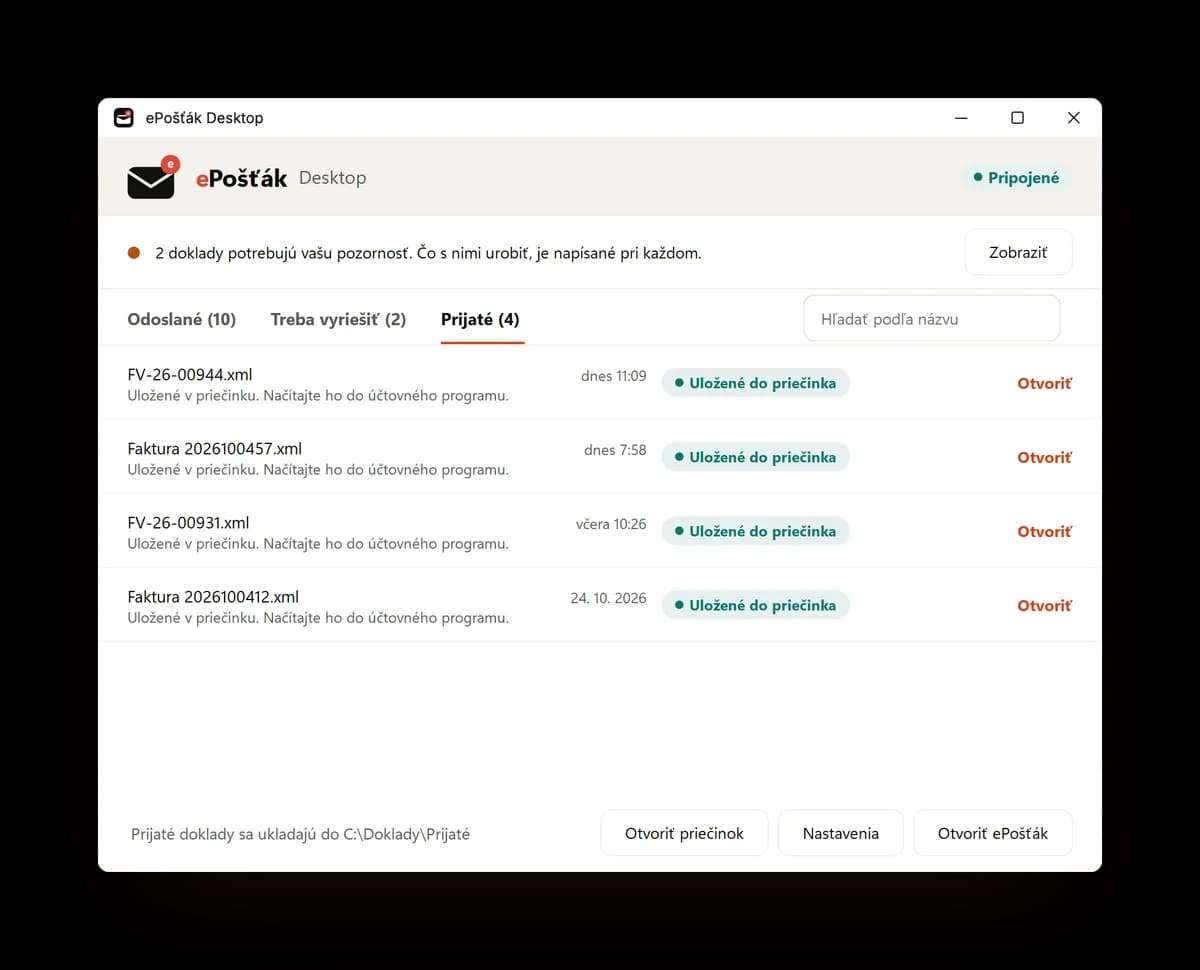
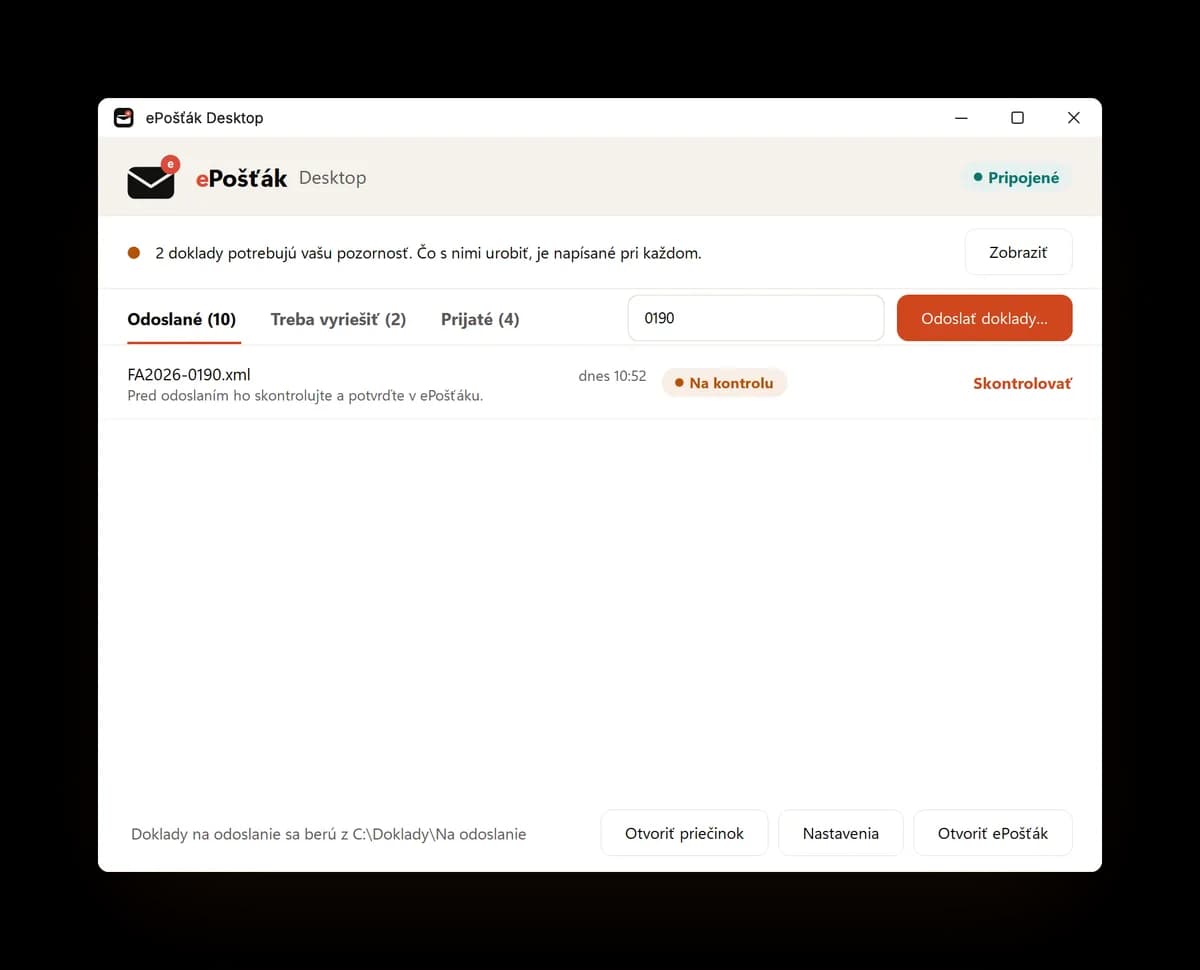
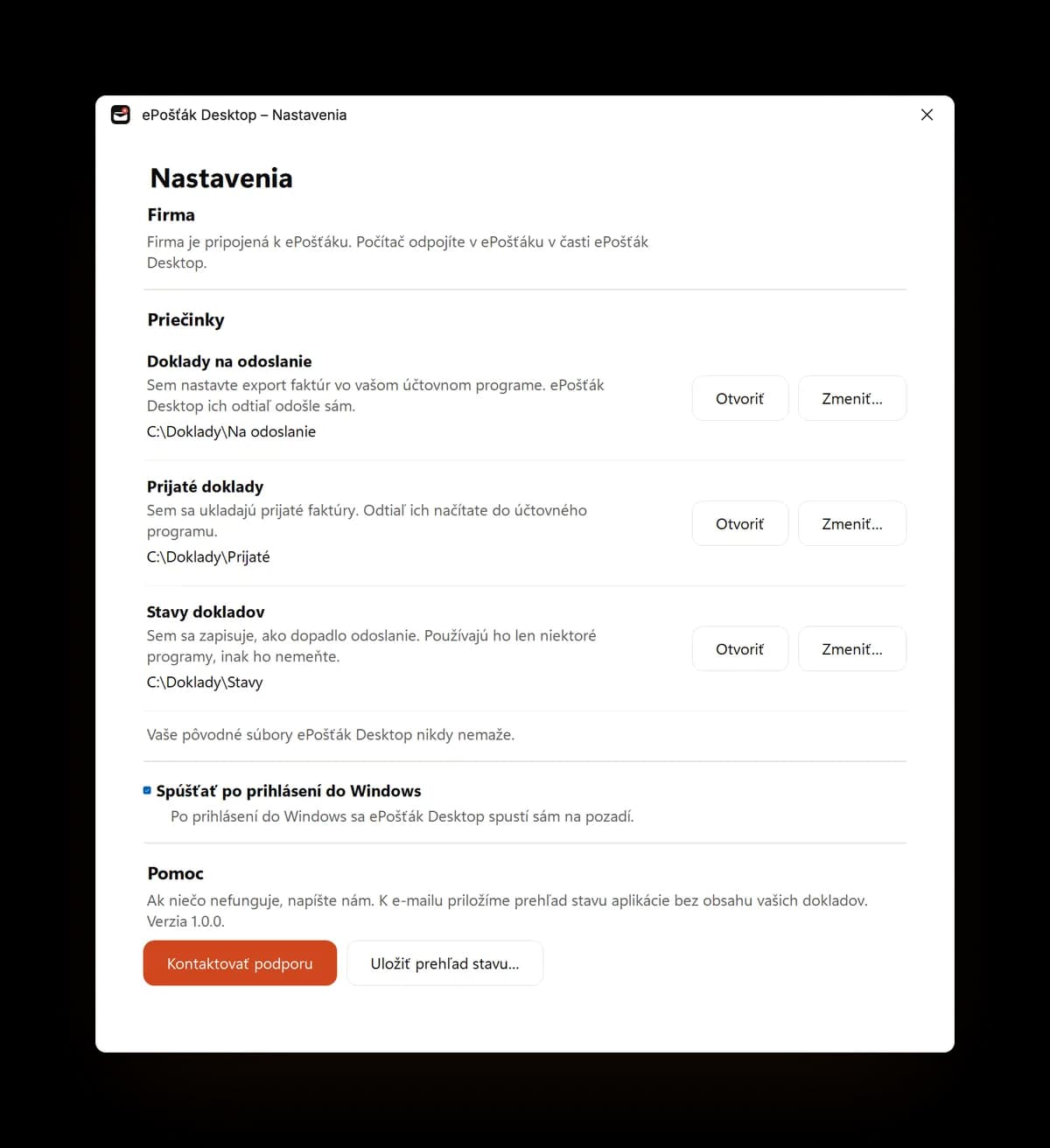
Connect your company. Create the pairing code in ePošťák under ePošťák Desktop with Pripojiť počítač (connect computer). Paste it into the app and press Pripojiť. The code is short-lived and works once.
Screenshots are from ePošťák Desktop (the app is in Slovak). Step 1 / 8.
The app is free, you pay only for delivered invoices
- You download and use the app at no charge.
- Invoices sent through it are billed by the API price list, like a firm's direct API connection.
- In 2026 only delivered invoices and credit notes are paid. If your customer is not on Peppol, you pay nothing.
- Desktop needs the firm's API plan. A firm on the Free plan has to change its plan first.
What it runs on
- Windows
- Windows 10 (version 2004 or later) or Windows 11, 64-bit (x64) and ARM64
- Connection
- Internet. The computer has to be on while invoices are sent.
- Account
- A firm in ePošťák with an API plan and permission for invoices